Wednesday, September 5, 2012

Part 6: Building Microsoft failover clustered HyperV LAB at home


Building Microsoft failover clustered HyperV LAB at home
Lab configuration: Part 1
Configuring and Testing High Availability of VM: Part 8
Powershell Rocks - Creating virtual Nic cards for testing (Standalone HyperV)
Error resolved: Hyperv cannot be installed: A Hyperviser is already running.

Creating a failover cluster

Click create a cluster from Failover cluster manager.

 Add servers hyperv01 and hyperv02 in the list. (on both server Failover cluster feature is installed)
 
On the next screen it asks if we want to validate servers. I am selecting no (as I have already validated it in previous steps, and found some warnings but I can safely ignore them, if you made any changes after validating cluster. I suggest here click yes and re-validate settings).

On the next screen enter the name for your cluster "HyperVclus01" and keep selected only pubic network, deselect others and give IP address 192.168.33.33  (This is the cluster hostname clients are going to access), keep clicking next till finish.
You can change drive letters of the shared drive if you find them altered. Here mine has been changed to R and S, if your setting didn’t change no need to alter them.
Go to storage right click on disks and Change drive letters. Cross verify it from computer. (you will see clustered icon on the shared disks)

When Microsoft iSCSI target is used for clustering,  disk are visible to one server at a time only, once first server goes down disk and resources will be moved to second server. You can check it by going hyperv02 and computer you will not find them.

Restart  host hyperv01 and shared disks will be moved to Hyperv02, and again reboot hyper02, I want shared disk on hyperv01 right now.

Download PDF copy of this article from --
https://skydrive.live.com/redir?resid=BFEC67332E5B7634!115

Saturday, August 25, 2012

Part 5: Building Microsoft failover clustered HyperV LAB at home

Building Microsoft failover clustered HyperV LAB at home
Lab configuration: Part 1
Configuring and Testing High Availability of VM: Part 8
Powershell Rocks - Creating virtual Nic cards for testing (Standalone HyperV)

Installing Microsoft Failover clustering

I am installing Failover clustering feature on Hyperv01 and Hyperv02, I am first installing it on Hyperv01 follow the same steps on hyperv02. Open Server manager right click Features and click add features.

Select failover clustering feature from the list and click next. Once installation is done click close, now your failover clustering has been installed, follow the same steps to install it on Hyperv02.

Validating Failover Cluster before creating it.


Open Failover cluster manager from administrative tools.

Add Server names hyperv01 and Hyperv02 one by one and press add. You will see the added list of servers in the selected servers, click next 

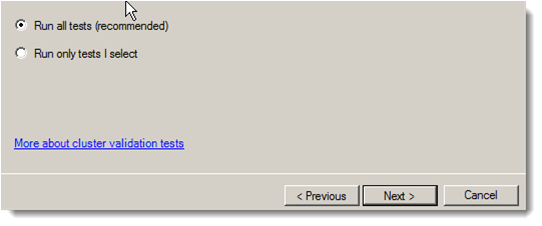
Keep all the defaults on the next screen and press next.

Configuration on hyperv01 and hyperv02 is going to be validated and tested. (Network, shared storage, AD connection etc).

Once all the testing done on the next screen you can some see warnings, open view reports, if there is any setting mismatch you can reconfigure them and eliminates warning or errors.  here I am good to go with the finish. (You will at least see one or more warning, with warning it is good to go next but if you find any error try resolving it, with errors you cannot create healthy cluster)

Part 4: Building Microsoft failover clustered HyperV LAB at home: Part 4

Building Microsoft failover clustered HyperV LAB at home
Lab configuration: Part 1
Configuring and Testing High Availability of VM: Part 8
Powershell Rocks - Creating virtual Nic cards for testing (Standalone HyperV)
Error resolved: Hyperv cannot be installed: A Hyperviser is already running.

Installing and configuring HyperV on HyperV01 (same settings will be done on HyperV02)

Open Server manager on administrative tools, Right click on Roles and click Add Roles
Go to Select Server Roles page and select Hyper-V from the list , click next.


Here I am using vNetwork (public network), VMs will use vNetwork Nic for their network traffic.

On the next screen press Install, after installation done it will ask for reboot, once reboot done (Several reboots), it will resume installation. There are nothing much to setup while installation.

Once after reboot post installation done you are ready to connecting another HyperV  and creating VM
(Add role HyperV on server HyperV02 with the same settings)

Connecting to another HyperV server

Open Hyper-V Manager from Administrative tools.

Click connect to Server by right clicking on Hyper-V Manager or from Action pane extreme right. Add  other server Hyperv02 (where hyperV is installed)

 Now both servers can be configured from one MMC.