Wednesday, September 5, 2012

Part 8: Building Microsoft failover clustered HyperV LAB at home

Configuring and Testing high availability of VM.

Before configuring Failover clustering, shutdown VM.
Open failover cluster Manager, right click Services and application and click Configure a service or Application
Select virtual Machine from the list and click next.
Select VM to make it highly available.
 Press next, check your settings on the next screen.
I am ignoring the warning on the next screen (you can view the report and read what is this warning) click finish. (if you get a warning you can proceed but in error you need to sort it out before clicking finish)


Right click VM and start it, once it is up we will test failover.
Once VM is fully up open cmd prompt on AD and type below command
Ping 192.168.33.34 -t

Right click vm > live migrate virtual machine to another note > 1 - live migrate to node hyperv02,
Now VM will move from hyperv01 to hyperv02
If you check the status it is migrating.
 
I got only 2 pings dropped while migration and littlie stretched latency, It means clients accessing VM didn’t even know they are accessing VM from hyperv02. Check it from HyperV manager as well.

Now try simulating Hardware down, Hard reboot Hyperv02, VM should be failover to host Hyperv01 with little downtime. (VM will restart on HyperV01 host).


Part 7: Building Microsoft failover clustered HyperV LAB at home

Building Microsoft failover clustered HyperV LAB at home
Lab configuration: Part 1
Configuring and Testing High Availability of VM: Part 8
Powershell Rocks - Creating virtual Nic cards for testing (Standalone HyperV)
Error resolved: Hyperv cannot be installed: A Hyperviser is already running.

Creating New Virtual Machine

I am creating first Virtual Machine on hyperv01 server. Right click hyperv01, click new, then virtual Machine.

Enter the name for new virtual machine "VM" and store it on P:\VM (Shared clustered disk)

Keep defaults. Memory - 512 MB.
Select vNetwork - virtual network from dropdown box, all the VM's network traffic will pass through vNetwork (Public network - 192.168.33.0/24).

I am giving 40 gb vhdd to VM (remember our shared Disk  P drive is only 20 gb, VM will use space on demand, let's say I have installed OS which will take 10 gb of space, if you check size of the vm.vhd you will find it only 10 GB. As you fill up the data inside vm.vhd it will grow but not beyond 20 gb. If you move vhd file to larger disk size (at least 40 GB). you can fill it upto 40 gb)

I have kept windows 2008 r2 enterprise ISO file on the C drive of hyperV01, I am going to use it to install it on to the VM.
Next screen is a summary about VM settings, click finish.
Now you can see one VM on hyperv01, right click on VM and click connect.
This is console for VM, from here we can control installation and configuration of VM.
We had mapped ISO image while creation of VM and it will boot from it once you start VM, Install windows 2008 R2 and configure below settings, all other settings will be default.

Hostname: VM
IP address: 192.168.33.34
Download PDF copy of this article from --
https://skydrive.live.com/redir?resid=BFEC67332E5B7634!115

Part 6: Building Microsoft failover clustered HyperV LAB at home


Building Microsoft failover clustered HyperV LAB at home
Lab configuration: Part 1
Configuring and Testing High Availability of VM: Part 8
Powershell Rocks - Creating virtual Nic cards for testing (Standalone HyperV)
Error resolved: Hyperv cannot be installed: A Hyperviser is already running.

Creating a failover cluster

Click create a cluster from Failover cluster manager.

 Add servers hyperv01 and hyperv02 in the list. (on both server Failover cluster feature is installed)
 
On the next screen it asks if we want to validate servers. I am selecting no (as I have already validated it in previous steps, and found some warnings but I can safely ignore them, if you made any changes after validating cluster. I suggest here click yes and re-validate settings).

On the next screen enter the name for your cluster "HyperVclus01" and keep selected only pubic network, deselect others and give IP address 192.168.33.33  (This is the cluster hostname clients are going to access), keep clicking next till finish.
You can change drive letters of the shared drive if you find them altered. Here mine has been changed to R and S, if your setting didn’t change no need to alter them.
Go to storage right click on disks and Change drive letters. Cross verify it from computer. (you will see clustered icon on the shared disks)

When Microsoft iSCSI target is used for clustering,  disk are visible to one server at a time only, once first server goes down disk and resources will be moved to second server. You can check it by going hyperv02 and computer you will not find them.

Restart  host hyperv01 and shared disks will be moved to Hyperv02, and again reboot hyper02, I want shared disk on hyperv01 right now.

Download PDF copy of this article from --
https://skydrive.live.com/redir?resid=BFEC67332E5B7634!115

Saturday, August 25, 2012

Part 5: Building Microsoft failover clustered HyperV LAB at home

Building Microsoft failover clustered HyperV LAB at home
Lab configuration: Part 1
Configuring and Testing High Availability of VM: Part 8
Powershell Rocks - Creating virtual Nic cards for testing (Standalone HyperV)

Installing Microsoft Failover clustering

I am installing Failover clustering feature on Hyperv01 and Hyperv02, I am first installing it on Hyperv01 follow the same steps on hyperv02. Open Server manager right click Features and click add features.

Select failover clustering feature from the list and click next. Once installation is done click close, now your failover clustering has been installed, follow the same steps to install it on Hyperv02.

Validating Failover Cluster before creating it.


Open Failover cluster manager from administrative tools.

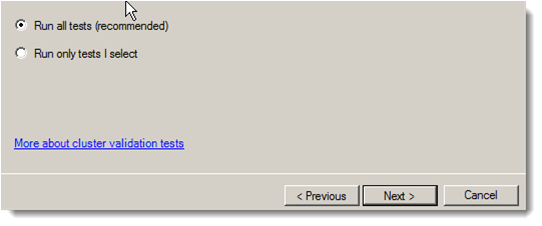
Add Server names hyperv01 and Hyperv02 one by one and press add. You will see the added list of servers in the selected servers, click next 

Keep all the defaults on the next screen and press next.

Configuration on hyperv01 and hyperv02 is going to be validated and tested. (Network, shared storage, AD connection etc).

Once all the testing done on the next screen you can some see warnings, open view reports, if there is any setting mismatch you can reconfigure them and eliminates warning or errors.  here I am good to go with the finish. (You will at least see one or more warning, with warning it is good to go next but if you find any error try resolving it, with errors you cannot create healthy cluster)